

Stop Handing Out Your Admin Login: The Agency Owner's Guide to the WordPress Application Password
You wouldn't hand the master keys to your agency's office to every contractor who walks through the door. So why are you giving your primary WordPress admin login to every third-party app, AI tool, and automation script you use?
It's a common scenario. You want to set up a new Zapier workflow or connect a reporting dashboard to your site. You hit an authentication wall, get frustrated, and just plug in your main admin credentials to get it working. Or worse, you create a generic [email protected] user and use that single password for every integration across your business.
If you're building a scalable agency, your security protocols need to mature past the startup phase. In this post, you'll learn how to use a wordpress application password to securely connect your tools, automate your workflows, and protect your digital assets — without the duct tape.
The Problem With Shared Credentials
Picture this: you're trying to connect a new AI content generation tool to your WordPress site. The setup requires authentication. You try to figure out the right permissions, but it gets complicated. So you take the path of least resistance and use your primary admin login.
It works. The tool connects. You move on to the next fire.
But the real danger surfaces months later. That tool gets compromised. Or a contractor who had access to that integration leaves your agency. Suddenly your entire site is at risk.
If you change your main password to secure the site, you instantly break five other mission-critical integrations that were relying on those same credentials. You're left untangling a web of broken API connections, trying to figure out which tool is using which login. This is the nightmare of operating without proper infrastructure. You're building a house of cards, and one compromised tool can bring the whole thing down.
The Reframe: Programmatic Access Needs Specific Keys
The conventional approach is lazy. Creating a single admin user and reusing that password across every integration is a massive security liability.
You need to change how you think about site access. Humans need one type of key. Software needs another.
Enter the wordpress application password. This is the non-negotiable standard for programmatic access.
Introduced in WordPress 5.6, an application password is a unique, revocable credential tied to a specific user account. Here is the critical distinction: it only works for the REST API and XML-RPC. It cannot be used to log into the wp-admin screen [1]. Furthermore, application passwords bypass Two-Factor Authentication (2FA) by design [3]. This is actually a massive benefit — it means you can lock down your human admin accounts with strict 2FA, while allowing automated tools to authenticate via the API without getting blocked by a 2FA prompt.
This means you can grant a piece of software the ability to authenticate and perform actions on your behalf, without ever giving it the ability to walk into your dashboard as a human user. If the tool is compromised, you simply revoke that single application password. Your main login stays secure. Your other integrations keep running.
The Solution: Setting Up Your Application Passwords
Implementing this across your agency is straightforward. Here's the step-by-step process.
Step 1: Enforce HTTPS
Application passwords require an SSL certificate to function securely. Because these passwords are sent via Basic Authentication, they must be encrypted in transit [1]. If your site isn't forcing HTTPS, that's the very first thing to fix. Don't proceed until your site is secure.
Step 2: Bypass the Security Plugin Block (The Wordfence Fix)
This is the most common roadblock agency owners hit, and it's the one that sends people to Google in frustration. Security plugins like Wordfence disable application passwords by default [2]. Their reasoning: any user role can generate them, which they view as an expanded attack surface.
If you navigate to your profile and see the message “Application passwords have been disabled by Wordfence,” you're stuck. You can't proceed.
The fix is simple. In Wordfence, navigate to Wordfence > Firewall > Manage WAF > Brute Force Protection. Scroll down, uncheck “Disable WordPress application passwords,” and save [2]. Wordfence isn't the only culprit — All In One WP Security and Astra Security do the same thing. If you're using a different security plugin and hit the same wall, check its firewall or brute force settings.
Step 3: Generate the Password (With Least Privilege)
Before you generate the password, you must understand the Principle of Least Privilege. An application password inherits the exact permissions of the user account that creates it [3]. If you generate the password while logged in as an Administrator, the application gets full admin access to the REST API.
If your third-party tool only needs to publish blog posts, do not give it an admin-level application password. Create a dedicated “Author” or “Editor” user account, log in as that user, and generate the application password from there. Always grant the minimum possible privileges required for the integration to function [4].
Once you are logged into the correct account, navigate to Users > Profile. Scroll down until you find the Application Passwords section.
Enter a highly descriptive name for the new password. Don't just call it “API.” Call it “Zapier — Blog Publishing” or “Make.com — CRM Sync.” You need to know exactly what this password does when you audit your site six months from now.
Click “Add New Application Password.” WordPress generates a 24-character string [3]. Copy it immediately. WordPress only shows you this password once. If you lose it, you cannot retrieve it — you will have to revoke it and generate a brand new one [3].
Step 4: Connect the Tool
Take that password to your third-party tool. When setting up the connection — whether that's a Webhooks by Zapier action, a Make.com HTTP module, or a custom script — you'll use HTTP Basic Authentication [1].
Your username is your standard WordPress username. Your password is the new application password wordpress you just generated. That's it. This handles your wordpress rest api authentication securely, without exposing your primary credentials.
More complex setups might eventually require jwt authentication for wp rest api or wp oauth, but for the vast majority of agency automation needs, the native application password is the most robust, built-in solution available.
Step 5: Manage and Revoke
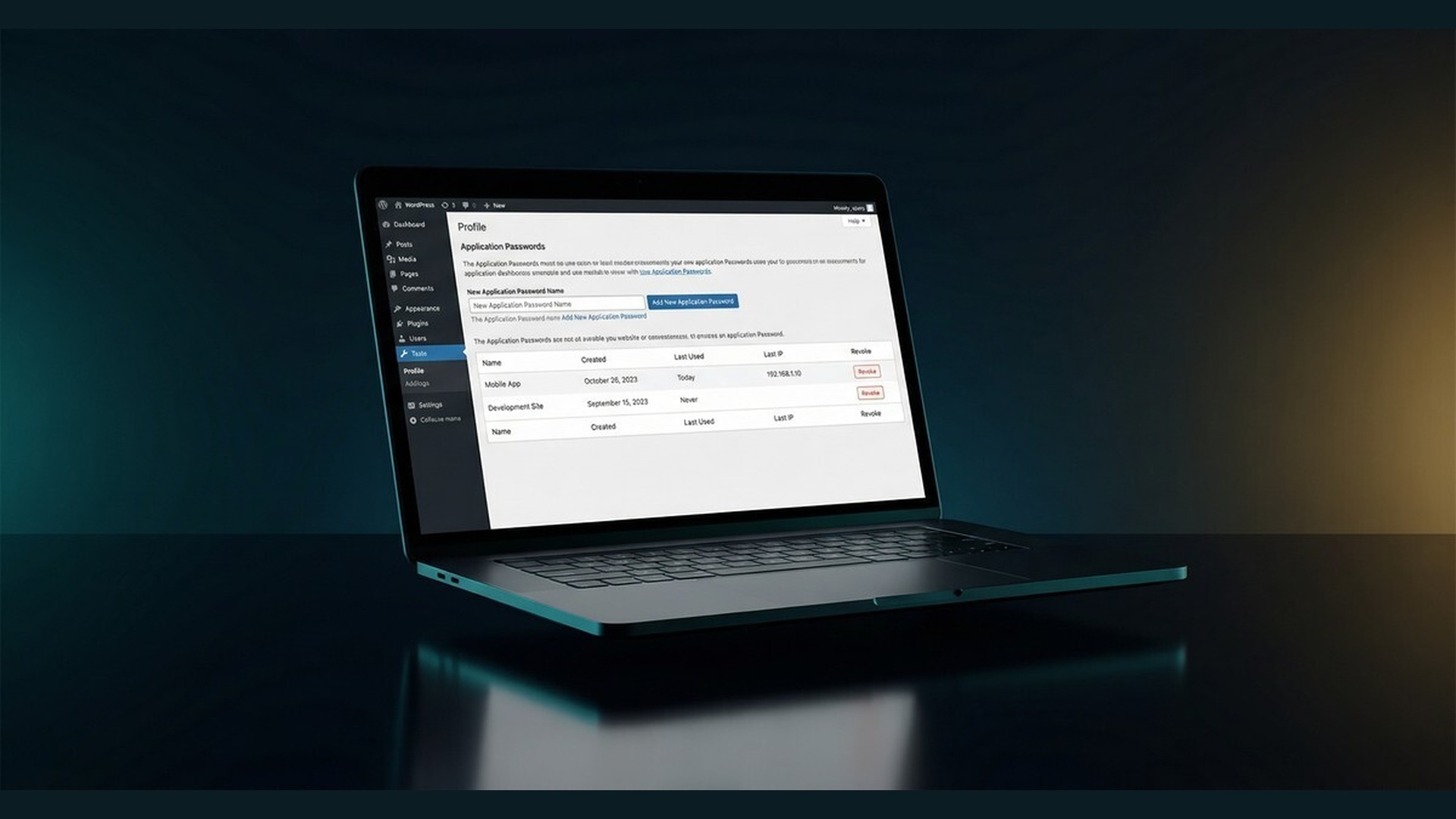
The real beauty of this system is in the management. The Application Passwords section on your profile shows every active credential — the name, the creation date, the last time it was used, and the last IP address that used it [1].
If you stop using a tool, or if an integration starts acting up, click “Revoke” next to that specific password. Access terminated. Your main password doesn't change. Your other tools don't break.
Implementation: Audit Your Integrations This Week
Don't just read this and move on. This week, audit your current WordPress integrations.
Open your Zapier account, your Make.com scenarios, or whatever automation platform you use. Identify one tool that's currently authenticating with your primary admin password.
Go into WordPress, generate a dedicated application password for that tool, and update the connection.
Then establish a rule: one password per integration. Never reuse them. Treat these credentials like sensitive secrets. When a tool is no longer needed, revoke the password immediately.
FAQ: WordPress Application Passwords
Are WordPress application passwords a security risk?
No, WordPress application passwords are not a security risk when used correctly [4]. They actually improve security by preventing the need to share your primary admin password with third-party tools, and they cannot be used to log into the WordPress admin dashboard [1].
Why is the application password missing in WordPress?
The application password section is missing because a security plugin like Wordfence, Astra, or All In One WP Security has disabled the feature [2]. You must navigate to your security plugin's brute force protection settings and uncheck the option that disables application passwords.
Can application passwords bypass 2FA?
Yes, application passwords bypass Two-Factor Authentication (2FA) by design [3]. This allows automated tools and APIs to authenticate successfully without triggering a 2FA prompt, while your human login remains protected by 2FA.
How do I recover a lost WordPress application password?
You cannot recover a lost WordPress application password [3]. WordPress only displays the 24-character password once during creation and stores a hashed version in the database. If you lose the password, you must revoke it and generate a new one.
Build Systems, Not House of Cards
Securing your agency's infrastructure isn't just about preventing hacks. It's about building a robust, scalable system that doesn't rely on shared passwords and duct tape.
Stop treating your site's security as an afterthought. Implement application passwords for all your API connections today. It's a small architectural change that separates the operators who are building something real from those who are just winging it.
If you're ready to stop winging it and build a truly scalable agency, check out our Agency OS™ — the complete operating system for digital agencies, with the exact systems and protocols we use to run seven-figure agencies.
References
[1] WordPress Developer Resources. “Application Passwords – Advanced Administration Handbook.” https://developer.wordpress.org/advanced-administration/security/application-passwords/
[2] Wordfence. “Brute Force Protection.” https://www.wordfence.com/help/firewall/brute-force/
[3] Melapress. “WordPress Application Passwords: Creating & Troubleshooting.” https://melapress.com/wordpress-application-passwords/
[4] Shield Security. “WordPress Application Passwords – Everything You Need To Know.” https://getshieldsecurity.com/blog/wordpress-application-passwords/